Building a Chess TUI in Go (Part 1): Laying the Foundation
According to Chess.com, I have played chess consistently for 61 days. During that time I have played many games. I started with 15|10, then moved to 10-minute games, and lately I have been playing mostly 3|2 and 3-minute blitz. My rating is not great, but I have genuinely enjoyed the process of learning. Studying basic techniques, experimenting with gambits, and slowly understanding positions better has been rewarding in its own way.
At the same time, I love programming. I spend most of my day thinking in terms of systems, state, and behavior, so at some point it felt natural to connect both interests. Over the last couple of weeks, I started thinking about building a small side project: a chess TUI written in Go.
The idea is not to compete with existing chess apps or engines. This is a learning project. I want to understand how Stockfish actually works in practice, what information it gives you, how it evaluates positions, and how an interface communicates with a chess engine. More importantly, I want to enjoy the process of building something tangible that combines chess and software engineering.
This project also scratches a different itch. A terminal user interface forces you to think carefully about state, input, rendering, and feedback. There is no mouse, no animations, no hiding complexity behind a GUI framework. Everything is explicit. That makes it a great environment to learn.
In this blog post, I will start at the very beginning. Before touching chess rules, engines, or move validation, I will focus on creating a solid TUI foundation in Golang. The goal is to understand how a TUI works, how to structure it properly, and how to design it in a way that will later make chess integration straightforward.
Once the TUI fundamentals are in place, I will incrementally layer in chess logic, and eventually Stockfish. But first, the terminal.
Prerequisites
This tutorial assumes you have:
- Go 1.21 or later installed
- Basic familiarity with Go syntax and concepts
- A terminal that supports ANSI colors
No prior experience with TUI frameworks or chess programming is required.
Why Start With a TUI
Chess is fundamentally a state machine. At any moment, there is a board position, a player whose turn it is, and a set of legal moves. User actions transition from one state to another. A TUI maps naturally to that mental model: every keystroke becomes an event, every frame is redrawn from scratch, and there are no hidden abstractions.
Building the interface first ensures we understand state management before adding chess complexity. When we eventually integrate move validation and engine analysis, the plumbing will already be in place.
Choosing the Right Tools
For this project, I chose:
- Bubble Tea for the TUI framework
- Lipgloss for styling and layout
Bubble Tea implements The Elm Architecture, a pattern where your entire application state lives in a single model, updates happen through pure functions, and the view is always derived from current state. This strict Model-Update-View architecture keeps complexity under control as the project grows.
Lipgloss provides a declarative API for terminal styling. Instead of embedding ANSI escape codes throughout our rendering logic, we define styles once and apply them cleanly. This separation keeps our code readable.
At this stage, we deliberately avoid any chess-specific libraries. The foundation should work independently.
Project Setup
We start with a minimal project layout:
mkdir chess-tui
cd chess-tui
mkdir -p cmd/tui
touch cmd/tui/main.go
go mod init github.com/hyeomans/chesstui
Then install the dependencies:
go get github.com/charmbracelet/bubbletea
go get github.com/charmbracelet/lipgloss
Defining the Application State
The heart of a Bubble Tea application is the model. This is where all state lives. Let’s examine each field:
const boardSize = 8

type model struct {
	cursorX int
	cursorY int

	selected   bool
	selectedX  int
	selectedY  int

	status     string
	showCoords bool
}
The boardSize constant defines our 8×8 grid. Using a constant instead of a magic number makes the code self-documenting and easier to change if we ever wanted to support variant boards.
The cursorX and cursorY fields track where the player’s cursor currently sits on the board. These use zero-indexed coordinates where (0,0) is the top-left corner (square a8 in chess notation) and (7,7) is the bottom-right corner (square h1).
The selected boolean indicates whether the player has picked up a piece. When selected is true, selectedX and selectedY remember which square was chosen. This two-phase selection (pick source, then pick destination) mirrors how you would move a piece on a physical board.
The status field holds a message displayed below the board. This provides feedback after each action, letting the player know what happened and what to do next.
Finally, showCoords controls whether file letters (a-h) and rank numbers (1-8) appear around the board edges. This toggle helps during development and can assist players who are still learning algebraic notation.
Initializing the Model
The initialModel function defines the starting state:
func initialModel() model {
	return model{
		cursorX:    4,
		cursorY:    4,
		selected:   false,
		status:     "Arrow keys move. Enter selects. Esc cancels. c toggles coords. q quits.",
		showCoords: true,
	}
}
Starting the cursor at (4,4) places it near the center of the board. This avoids edge cases during early testing and feels natural since the center is strategically important in chess.
The selected field starts as false because no piece is picked up yet. The status message provides immediate guidance on available controls. Coordinates are visible by default to help verify that our chess notation mapping works correctly.
The Init Method
Every Bubble Tea model must implement the tea.Model interface, which requires three methods: Init, Update, and View. The Init method runs once at startup:
func (m model) Init() tea.Cmd { return nil }This method returns a tea.Cmd, which represents a side effect like reading a file or making an HTTP request. Returning nil means we have no startup tasks. Later, when we integrate Stockfish, this is where we might spawn the engine process.
Helper Functions
Before diving into the update logic, let’s look at two small helpers:
func clamp(v, lo, hi int) int {
	if v < lo {
		return lo
	}
	if v > hi {
		return hi
	}
	return v
}
The clamp function constrains a value within bounds. When the player presses an arrow key at the board’s edge, clamp prevents the cursor from moving off the grid. This is cleaner than scattering boundary checks throughout the update logic.
func squareName(x, y int) string {
	file := byte('a' + x)
	rank := byte('8' - y)
	return string([]byte{file, rank})
}
The squareName function converts our internal coordinates to standard chess notation. The file (column) maps directly: x=0 becomes ‘a’, x=1 becomes ‘b’, and so on. The rank (row) is inverted because chess numbers ranks from bottom to top, but our grid numbers rows from top to bottom. So y=0 (top row) becomes rank 8, and y=7 (bottom row) becomes rank 1.
This function becomes critical when we integrate a chess library, since libraries like notnil/chess expect moves in algebraic notation like “e2e4”.
The Update Loop
The Update method is where all the action happens. It receives messages (usually keyboard input) and returns an updated model:
func (m model) Update(msg tea.Msg) (tea.Model, tea.Cmd) {
	switch msg := msg.(type) {
	case tea.KeyMsg:
		switch msg.String() {
Bubble Tea wraps all input in message types. We use a type switch to handle tea.KeyMsg events, then switch again on the key string to determine which key was pressed.
Quitting the Application
		case "q", "ctrl+c":
			return m, tea.Quit
Both “q” and Ctrl+C exit the program. Returning tea.Quit tells Bubble Tea to shut down gracefully, restoring the terminal to its original state.
Toggling Coordinates
		case "c":
			m.showCoords = !m.showCoords
			if m.showCoords {
				m.status = "Coordinates: ON"
			} else {
				m.status = "Coordinates: OFF"
			}
			return m, nil
Pressing “c” flips the showCoords boolean and updates the status message to confirm the change. Returning nil as the command means no side effects occur.
Canceling Selection
		case "esc":
			m.selected = false
			m.status = "Selection cleared."
			return m, nil
Escape clears any active selection. This is essential for correcting mistakes—if you select the wrong piece, you need a way to start over.
Moving the Cursor
		case "up", "w":
			m.cursorY = clamp(m.cursorY-1, 0, boardSize-1)
		case "down", "s":
			m.cursorY = clamp(m.cursorY+1, 0, boardSize-1)
		case "left", "a":
			m.cursorX = clamp(m.cursorX-1, 0, boardSize-1)
		case "right", "d":
			m.cursorX = clamp(m.cursorX+1, 0, boardSize-1)
Arrow keys, and wasd adjust the cursor position. Note that “up” decreases Y (moving toward row 0, which is rank 8) and “down” increases Y. The clamp calls ensure the cursor stays within the 0-7 range.
Selecting Squares and Making Moves
		case "enter", " ":
			if !m.selected {
				m.selected = true
				m.selectedX, m.selectedY = m.cursorX, m.cursorY
				m.status = fmt.Sprintf("Selected %s. Pick destination and press Enter.",
					squareName(m.selectedX, m.selectedY),
				)
				return m, nil
			}

			from := squareName(m.selectedX, m.selectedY)
			to := squareName(m.cursorX, m.cursorY)
			m.selected = false
			m.status = fmt.Sprintf("Planned move: %s -> %s (chess rules next).", from, to)
			return m, nil
		}
	}
	return m, nil
}
Enter and Space both trigger selection. The logic branches based on whether a square is already selected:
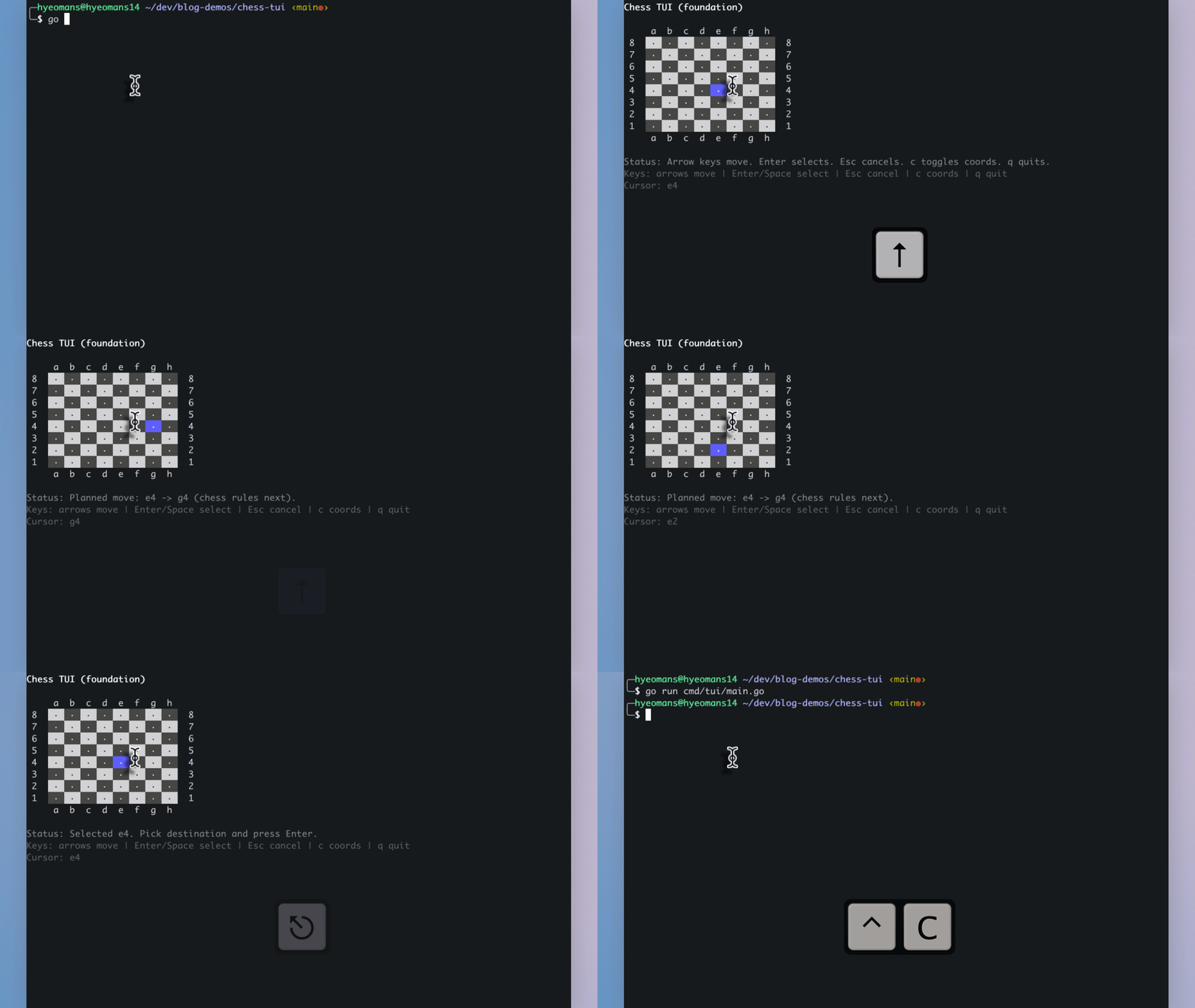
If nothing is selected, we record the current cursor position as the source square and update the status to prompt for a destination.
If a square is already selected, this press chooses the destination. We format both squares in chess notation, clear the selection, and display the planned move. Right now this doesn’t validate anything—it just demonstrates the interaction pattern. In Part 2, we’ll add a chess library that rejects illegal moves.
The final return m, nil handles any unrecognized keys by returning the model unchanged.
Rendering the Board
The View method produces a string that Bubble Tea prints to the terminal. Let’s walk through it section by section.
Defining Styles
func (m model) View() string {
	titleStyle := lipgloss.NewStyle().Bold(true)
	statusStyle := lipgloss.NewStyle().Foreground(lipgloss.Color("245"))
	helpStyle := lipgloss.NewStyle().Foreground(lipgloss.Color("241"))

	light := lipgloss.NewStyle().Background(lipgloss.Color("252")).Foreground(lipgloss.Color("0"))
	dark := lipgloss.NewStyle().Background(lipgloss.Color("238")).Foreground(lipgloss.Color("255"))

	cursorStyle := lipgloss.NewStyle().
		Background(lipgloss.Color("63")).
		Foreground(lipgloss.Color("255")).
		Bold(true)

	selectedStyle := lipgloss.NewStyle().
		Background(lipgloss.Color("135")).
		Foreground(lipgloss.Color("0")).
		Bold(true)
Lipgloss styles are created with NewStyle() and configured via method chaining. The color numbers refer to the 256-color ANSI palette.
titleStylemakes the header boldstatusStyleandhelpStyleuse gray tones (245 and 241) to de-emphasize secondary textlightanddarkcreate the checkerboard pattern—light squares get a near-white background (252), dark squares get a charcoal background (238)cursorStyleuses a purple-blue background (63) to highlight where the cursor isselectedStyleuses a magenta background (135) to mark the source square of a pending move
Keeping all styles in one place makes it easy to tweak the color scheme later.
Setting Up Cell Content
cellContent := " · "Each square displays a centered dot as a placeholder. In Part 2, we’ll replace this with actual piece symbols like ♟ and ♙.
Building the Output String
	var out string
	out += titleStyle.Render("Chess TUI (foundation)") + "\n\n"
We build the entire view by concatenating strings. The title appears at the top, followed by blank lines for spacing.
Rendering File Labels (Top)
	if m.showCoords {
		out += "    "
		for x := 0; x < boardSize; x++ {
			out += fmt.Sprintf(" %c ", 'a'+x)
		}
		out += "\n"
	}
When coordinates are enabled, we print file letters (a through h) above the board. The initial four spaces align the letters with the squares, accounting for the rank numbers on the left.
Rendering Each Row
	for y := 0; y < boardSize; y++ {
		if m.showCoords {
			out += fmt.Sprintf(" %d  ", 8-y)
		}
We iterate through rows from top to bottom. The rank label uses 8-y because y=0 corresponds to rank 8, y=1 to rank 7, and so on.
Rendering Each Square
		for x := 0; x < boardSize; x++ {
			isLight := (x+y)%2 == 0
			style := dark
			if isLight {
				style = light
			}
Within each row, we iterate through columns. The checkerboard pattern comes from (x+y)%2: when the sum is even, the square is light; when odd, it’s dark.
Applying Highlight Styles
			if m.selected && x == m.selectedX && y == m.selectedY {
				style = selectedStyle
			}
			if x == m.cursorX && y == m.cursorY {
				style = cursorStyle
			}

			out += style.Render(cellContent)
		}
We override the base color for highlighted squares. The order matters: selected squares turn magenta first, but if the cursor is on the selected square, it turns blue. This ensures the cursor is always visible.
Completing the Row
		if m.showCoords {
			out += fmt.Sprintf("  %d", 8-y)
		}
		out += "\n"
	}
After all eight squares in a row, we optionally print the rank number again on the right side, then move to the next line.
Rendering File Labels (Bottom) and Status
	if m.showCoords {
		out += "    "
		for x := 0; x < boardSize; x++ {
			out += fmt.Sprintf(" %c ", 'a'+x)
		}
		out += "\n"
	}

	out += "\n" + statusStyle.Render("Status: "+m.status) + "\n"
	out += helpStyle.Render("Keys: arrows/wasd move | Enter/Space select | Esc cancel | c coords | q quit") + "\n"
	out += helpStyle.Render(
		fmt.Sprintf("Cursor: %s", squareName(m.cursorX, m.cursorY)),
	) + "\n"

	return out
}
We repeat the file labels below the board for convenience, then add the status message, a help line summarizing controls, and a debug line showing the cursor’s chess notation. This debug line will be invaluable when testing the chess library integration.
The Main Function
func main() {
	p := tea.NewProgram(initialModel(), tea.WithAltScreen())
	if err := p.Start(); err != nil {
		fmt.Fprintln(os.Stderr, err)
		os.Exit(1)
	}
}
We create a new Bubble Tea program with our initial model. The tea.WithAltScreen() option switches the terminal to an alternate screen buffer—this is the same mechanism that editors like Vim use. It prevents our output from mixing with previous terminal content and automatically restores everything when the program exits.
If starting the program fails (which is rare), we print the error to stderr and exit with a non-zero status code.
Running the Application
With everything in place, run:
go run cmd/tui/main.goYou should see an 8×8 grid with a highlighted cursor. Arrow keys move it around, Enter selects a square, and pressing Enter again on a different square reports a planned move. Press “q” to exit.
What We Have So Far
At this point, we have:
- A full-screen TUI that cleans up properly on exit
- Cursor navigation constrained to an 8×8 grid
- Two-phase square selection (source and destination)
- Chess-style coordinate mapping (a1-h8)
- Togglable coordinate labels for debugging
- A status line providing feedback after each action
- Clean separation between state, update logic, and rendering
All without touching a chess engine or move validation. The architecture is ready.
What Comes Next
In Part 2, we will:
- Replace placeholder dots with Unicode chess pieces (♔♕♖♗♘♙ and ♚♛♜♝♞♟)
- Integrate notnil/chess for position tracking and move validation
- Reject illegal moves with helpful error messages
- Detect check, checkmate, and stalemate
- Show whose turn it is
Only after the rules are solid will we integrate Stockfish in Part 3.
Complete Source Code
Here’s the full cmd/tui/main.go for reference:
package main

import (
	"fmt"
	"os"

	tea "github.com/charmbracelet/bubbletea"
	"github.com/charmbracelet/lipgloss"
)

const boardSize = 8

type model struct {
	cursorX int
	cursorY int

	selected   bool
	selectedX  int
	selectedY  int
	status     string
	showCoords bool
}

func initialModel() model {
	return model{
		cursorX:    4,
		cursorY:    4,
		selected:   false,
		status:     "Arrow keys move. Enter selects. Esc cancels. c toggles coords. q quits.",
		showCoords: true,
	}
}

func (m model) Init() tea.Cmd { return nil }

func clamp(v, lo, hi int) int {
	if v < lo {
		return lo
	}
	if v > hi {
		return hi
	}
	return v
}

func squareName(x, y int) string {
	file := byte('a' + x)
	rank := byte('8' - y)
	return string([]byte{file, rank})
}

func (m model) Update(msg tea.Msg) (tea.Model, tea.Cmd) {
	switch msg := msg.(type) {
	case tea.KeyMsg:
		switch msg.String() {
		case "q", "ctrl+c":
			return m, tea.Quit

		case "c":
			m.showCoords = !m.showCoords
			if m.showCoords {
				m.status = "Coordinates: ON"
			} else {
				m.status = "Coordinates: OFF"
			}
			return m, nil

		case "esc":
			m.selected = false
			m.status = "Selection cleared."
			return m, nil

		case "up", "w":
			m.cursorY = clamp(m.cursorY-1, 0, boardSize-1)
		case "down", "s":
			m.cursorY = clamp(m.cursorY+1, 0, boardSize-1)
		case "left", "a":
			m.cursorX = clamp(m.cursorX-1, 0, boardSize-1)
		case "right", "d":
			m.cursorX = clamp(m.cursorX+1, 0, boardSize-1)

		case "enter", " ":
			if !m.selected {
				m.selected = true
				m.selectedX, m.selectedY = m.cursorX, m.cursorY
				m.status = fmt.Sprintf("Selected %s. Pick destination and press Enter.",
					squareName(m.selectedX, m.selectedY),
				)
				return m, nil
			}

			from := squareName(m.selectedX, m.selectedY)
			to := squareName(m.cursorX, m.cursorY)
			m.selected = false
			m.status = fmt.Sprintf("Planned move: %s -> %s (chess rules next).", from, to)
			return m, nil
		}
	}
	return m, nil
}

func (m model) View() string {
	titleStyle := lipgloss.NewStyle().Bold(true)
	statusStyle := lipgloss.NewStyle().Foreground(lipgloss.Color("245"))
	helpStyle := lipgloss.NewStyle().Foreground(lipgloss.Color("241"))

	light := lipgloss.NewStyle().Background(lipgloss.Color("252")).Foreground(lipgloss.Color("0"))
	dark := lipgloss.NewStyle().Background(lipgloss.Color("238")).Foreground(lipgloss.Color("255"))

	cursorStyle := lipgloss.NewStyle().
		Background(lipgloss.Color("63")).
		Foreground(lipgloss.Color("255")).
		Bold(true)

	selectedStyle := lipgloss.NewStyle().
		Background(lipgloss.Color("135")).
		Foreground(lipgloss.Color("0")).
		Bold(true)

	cellContent := " · "

	var out string
	out += titleStyle.Render("Chess TUI (foundation)") + "\n\n"

	if m.showCoords {
		out += "    "
		for x := 0; x < boardSize; x++ {
			out += fmt.Sprintf(" %c ", 'a'+x)
		}
		out += "\n"
	}

	for y := 0; y < boardSize; y++ {
		if m.showCoords {
			out += fmt.Sprintf(" %d  ", 8-y)
		}

		for x := 0; x < boardSize; x++ {
			isLight := (x+y)%2 == 0
			style := dark
			if isLight {
				style = light
			}

			if m.selected && x == m.selectedX && y == m.selectedY {
				style = selectedStyle
			}
			if x == m.cursorX && y == m.cursorY {
				style = cursorStyle
			}

			out += style.Render(cellContent)
		}

		if m.showCoords {
			out += fmt.Sprintf("  %d", 8-y)
		}
		out += "\n"
	}

	if m.showCoords {
		out += "    "
		for x := 0; x < boardSize; x++ {
			out += fmt.Sprintf(" %c ", 'a'+x)
		}
		out += "\n"
	}

	out += "\n" + statusStyle.Render("Status: "+m.status) + "\n"
	out += helpStyle.Render("Keys: arrows move | Enter/Space select | Esc cancel | c coords | q quit") + "\n"
	out += helpStyle.Render(
		fmt.Sprintf("Cursor: %s", squareName(m.cursorX, m.cursorY)),
	) + "\n"

	return out
}

func main() {
	p := tea.NewProgram(initialModel(), tea.WithAltScreen())
	if err := p.Start(); err != nil {
		fmt.Fprintln(os.Stderr, err)
		os.Exit(1)
	}
}
Final Thoughts
This first step may look simple, but it’s the most important one. A clean TUI architecture makes everything that follows easier. Chess logic, engine integration, and analysis features all become state updates on top of a solid foundation.
The explicit nature of terminal interfaces forces clarity. Every piece of state is visible in the model. Every user action flows through Update. Every frame is derived purely from current state. There’s nowhere for bugs to hide.
In the next post, we’ll make it play real chess.